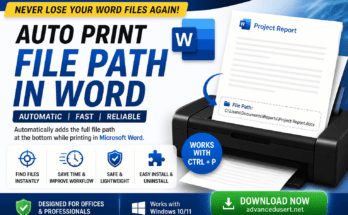
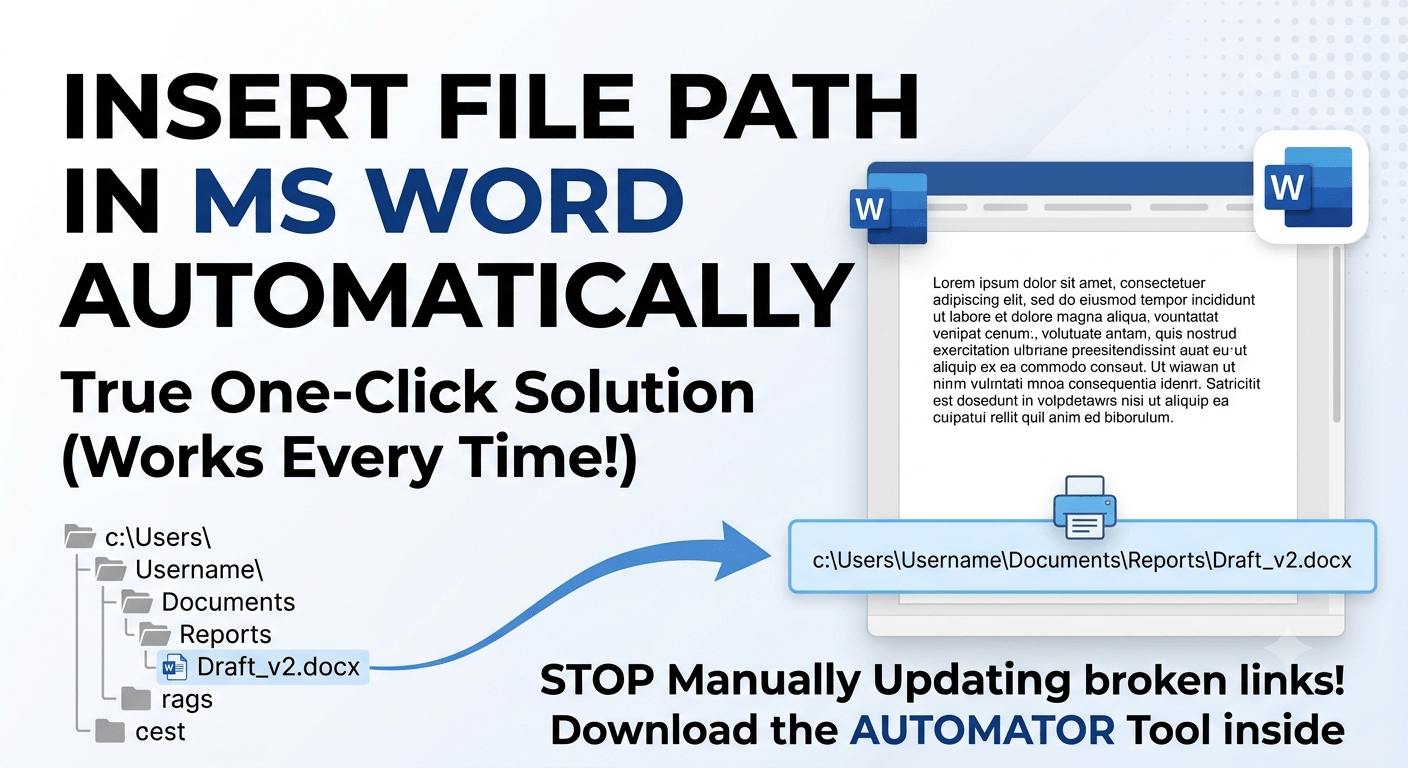
Finding the original digital file of a printed document can be a massive headache. The easiest way to keep your physical and digital archives organized is to display the folder location directly on your printed page.
While Microsoft Word has native ways to show document locations, they aren’t truly automated. If you move or rename your file, Word fails to update the path unless you manually refresh it.
If you want to add a file path in MS Word automatically without dealing with broken links or messy field codes, here is the ultimate “set-and-forget” solution.
How to Add File Path in MS Word Automatically with Print Automator
The MS Word Print With Path Automator is a lightweight, open-source utility that modifies your printing workflow to inject live directory links perfectly every time.
Unlike native Word features, this tool pulls the exact, live file path at the millisecond you hit print. Your physical papers get a clear tracking footer, but your saved digital files stay completely clean.
See It In Action (1-Minute Video Guide)
Want to see exactly how it works? Watch this quick YouTube Shorts Video Guide to see the automatic path generation in action.
Step-by-Step: How to Setup and Run the Tool
Follow these quick steps to permanently fix your document tracking:
- Download the Software: Grab the latest release directly from the official GitHub Repository or download it via SourceForge.
- Install: Run the quick installation wizard to register the automation template with your Microsoft Word setup.
- Print: Open any Word document and use your standard print command (Ctrl + P). The live file location will generate on the bottom of your printed page automatically.
Why Choose This Method Over Native Word Fields?
- True Automation: It detects if a file has been moved or renamed right before printing. You never have to manually update or refresh the path.
- Keeps Digital Files Clean: The path only appears on the physical printout. If you email the digital Word document or save it as a PDF for a client, your private internal PC paths remain hidden.
- One-Time Setup: You don’t need to insert macros or format headers and footers for every individual document. Install it once, and it works across all your files.