In a busy office environment—especially one using standalone, offline computers—physical documents often become “orphans.” You hold a printed report in your hand, but you have no idea where the digital version is saved on the hard drive.
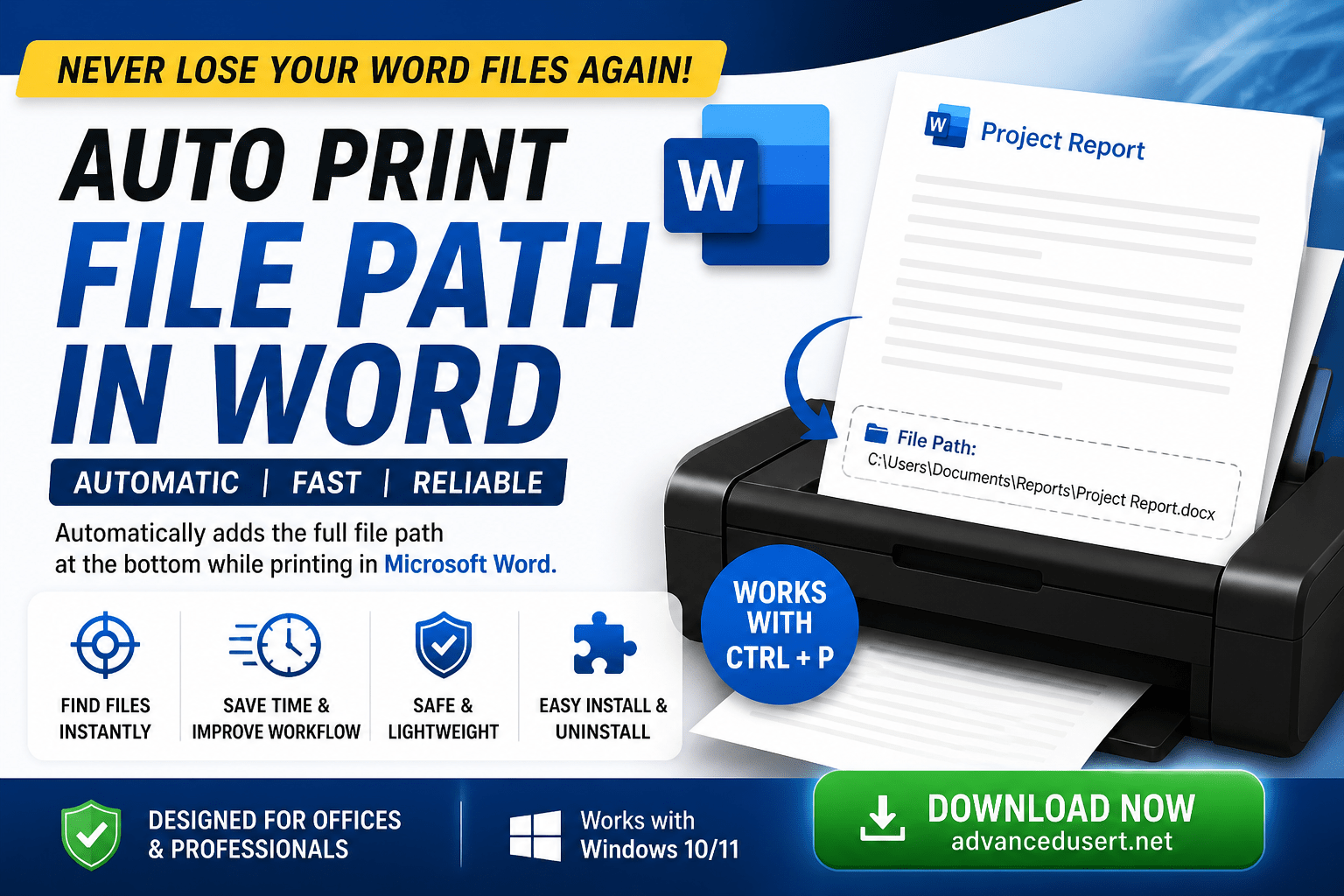
To solve this, I developed a custom tool that automatically prints the file path at the bottom of every page, only when needed, and without cluttering your digital document.
The Problem: Administrative Mismanagement
Large offices with many employees often struggle with file organization. Standard Microsoft Word features for inserting file paths (like Field Codes in headers) are often:
- Too Bulky: They take up permanent space in the design.
- Permanent: They stay on the digital copy even when you don’t want them there.
- Complex: Casual users often forget how to insert them.
The Solution: A “Ghost” Path Automator
I created a VBA-powered global template (.dotm) that overrides the default Ctrl+P behavior. When a user tries to print:
- A dialog box appears asking if they want the file path included.
- If “Yes,” a temporary, non-intrusive text box is created at the very bottom of the page.
- The standard Print Dialog opens.
- The Cleanup: Once the print command is sent, the text box is immediately deleted, leaving the original file untouched.
🚀 Why This Tool is a Game-Changer
Check out the key features that make this more than just a simple macro:
- ✅ Zero Digital Footprint: The file path is added as a “ghost” element. It exists during the print process but is automatically deleted afterward, so your saved document remains clean.
- ✅ Intelligent Positioning: Uses precise page-height calculations to place the path in the absolute bottom margin, ensuring it never overlaps your text or images.
- ✅ Single-Click Deployment: No need to teach users how to install macros. The custom-built
.exeinstaller handles the directory routing and setup automatically. - ✅ Conflict Protection: The installer is “Word-Aware”—it detects if Microsoft Word is open and prevents installation errors before they happen.
- ✅ User-Centric Control: Doesn’t force the path on every document. A quick dialog box gives users the choice to print “Clean” or “With Path” every time they hit Ctrl+P.
- ✅ Professional Aesthetics: Prints in 8pt Arial Italic Grey, giving it a subtle, “system-generated” look rather than a messy, manual addition.
- ✅ Standardized Workflow: By placing the
.dotmin the Startup folder, the feature becomes a global part of Word, working across all documents without manual attachment.
💡 Technical Highlight:
Unlike standard footers, this tool uses
wdRelativeVerticalPositionPage. This ensures the path is anchored to the physical paper edge, not the text flow. Even if your document has weird margins or section breaks, the path stays exactly where it belongs.
Technical Breakdown
1. The VBA Core logic
The heart of this tool is a specific coordinate calculation to ensure the path stays in the “dead zone” at the bottom of the page (the narrow offset).
VBA
' Positioning the box at the very bottom edge
pageHeight = doc.PageSetup.pageHeight
boxTop = pageHeight - 20

Set tempTextBox = doc.Shapes.AddTextbox( _
    Orientation:=msoTextOrientationHorizontal, _
    Left:=20, Top:=boxTop, _
    Width:=doc.PageSetup.PageWidth - 40, Height:=22)
The script also uses RelativeVerticalPosition = wdRelativeVerticalPositionPage to ensure that no matter how much text is on the page, the path always sits at the physical bottom.
2. Overriding the Shortcut
To make this seamless for employees, I overrode the Ctrl+P shortcut using the AutoExec sub. This ensures that every time Word opens, our custom logic is ready to go.
3. Deploying with InnoSetup
Manually installing a .dotm file in the Word STARTUP folder across dozens of computers is tedious. I used InnoSetup to create a professional .exe installer.
Key Installer Features:
- Conflict Prevention: The installer checks if Word is running and asks the user to close it to avoid “File in Use” errors.
- Auto-Deployment: It targets
{userappdata}\Microsoft\Word\STARTUPautomatically. - Developer Branding: Includes a custom UI label for support and version tracking.
Why This Approach Wins
- Clean Digital Files: Since the textbox is deleted after printing, you never have to worry about “saving” the path into the document.
- User Choice: The dialog box ensures that for official letters or certificates where a path isn’t wanted, the user can just click “Cancel” or use the File menu.
- Zero-Config for Users: Once the
.exeis run, the feature is just “there.”
Download & Source
I have shared the full InnoSetup script and the VBA source on my GitHub. This allows other system administrators to customize the margins, font sizes, or deployment paths for their specific office needs.
Visit the GitHub Repository Advanced-User-net and download setup file