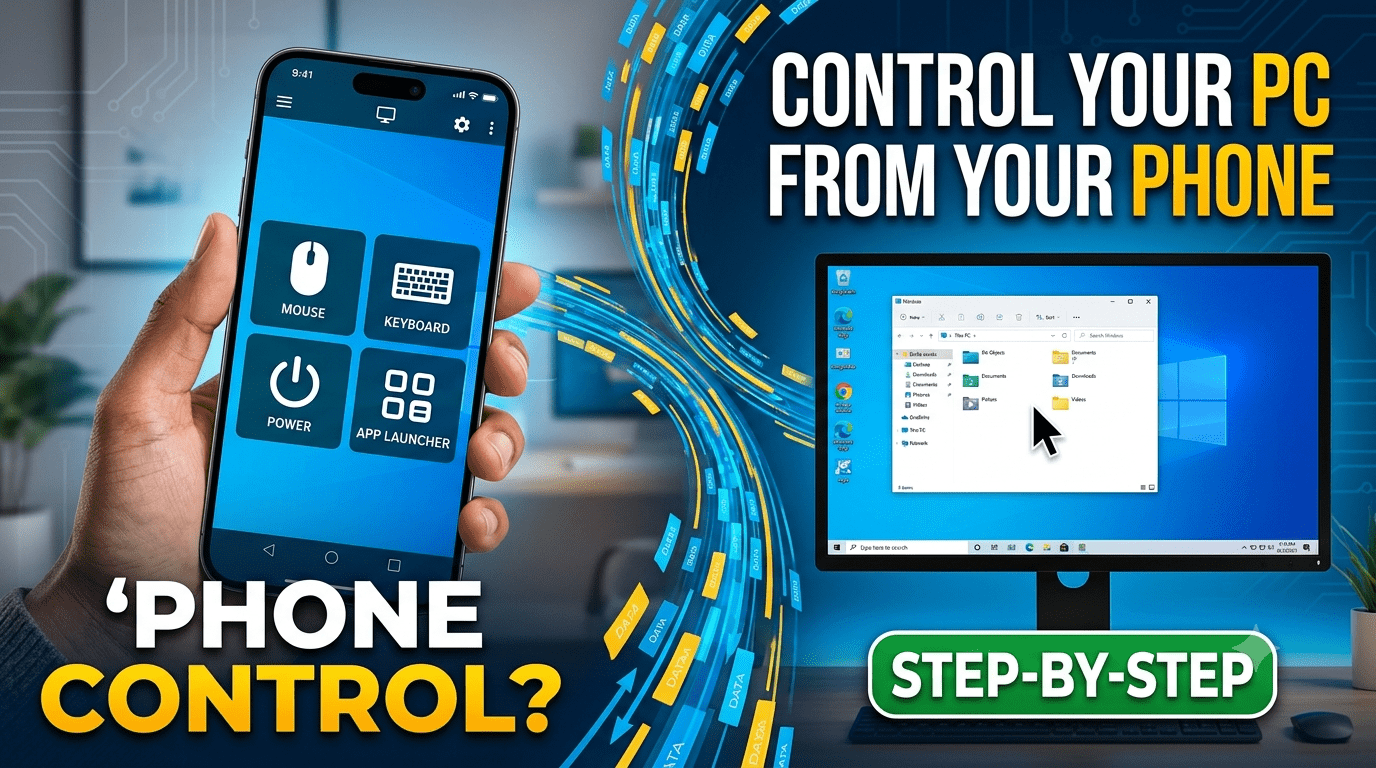
Have you ever wished you could access your computer files from across the room, shut down your PC while lying in bed, or use your phone as a wireless trackpad? Learning how to control your PC from your phone is a complete game-changer for productivity and convenience.
While there are many complex networking tools out there, you don’t need to be a network engineer to set up a remote desktop connection. In this guide, we will show you how to effortlessly control your computer using a free, high-performance tool called Monect PC Remote.
Why Use Your Phone to Control Your Computer?
Using your Android or iOS smartphone as a remote control solves several everyday problems:
- The Lazy Mouse: Browse media, pause movies, or turn off your computer without getting up.
- Remote Presentations: Navigate PowerPoint slides directly from your phone screen during meetings.
- Mobile PC Gaming: Use your phone as a custom game controller or steering wheel for PC games.
- File Management: Browse your PC’s hard drives (This PC) and open or close files right from your mobile display.
The Best Free App to Control PC via Phone: Monect PC Remote
To achieve a seamless, lag-free connection, we are using the Monect setup. It is a completely free software solution that connects your devices over your local Wi-Fi or Bluetooth network in just one click.
Here is exactly how to set it up step-by-step.
Step-by-Step Setup Guide
Step 1: Install the Monect Server on Your PC
First, you need to prepare your computer to accept incoming connections from your phone.
- Download the free Monect Server software on your laptop or desktop computer.
- Run the installer and follow the basic on-screen prompts. Once installed, launch the application.
Step 2: Download the PC Remote App on Your Phone
Next, you need to install the receiver application on your smartphone.
- Open the Google Play Store (for Android) or Apple App Store (for iOS).
- Search for “PC Remote” (look for the distinct app featuring an “M” logo by Monect).
- Download and install the app on your phone.
Step 3: Connect Your Phone to Your PC (One-Click)
Now that both applications are ready, establishing the connection takes less than five seconds:
- Ensure both your PC and your phone are connected to the same Wi-Fi network.
- Open the PC Remote app on your phone.
- Tap the Connect button. The app will automatically scan your local network, find your PC’s Monect receiver, and pair them instantly.
How it Works: Navigating Your Computer
Once the pairing is successful, your phone screen transforms into a powerful remote interface.
You can immediately use the touch screen to move your cursor, tap to click, and use on-screen shortcuts to navigate through your operating system. For example, you can open This PC, browse your drives, modify configurations, or safely shut down or restart your computer from a distance. The response time is incredibly fast, allowing you to close apps and manage files just as if you were sitting right in front of your monitor.
Troubleshooting Common Connection Issues
If your phone is struggling to find your PC during the scan, check the following fixes:
- Check the Network: Make sure your phone hasn’t accidentally switched over to cellular data; both devices must be on the exact same Wi-Fi router.
- Windows Firewall: If a prompt appears during the PC server installation, make sure you click Allow Access so Windows Defender doesn’t block the connection.
Watch the Video Walkthrough
If you want a quick, visual demonstration showing this seamless mobile-to-PC connection in action, watch the short video tutorial here: