We have all been there: you are in the middle of a project or settling down to watch a movie, and your wireless mouse suddenly dies, or you realize you don’t have a spare mouse for a secondary setup. Instead of running to the electronics store or struggling with keyboard shortcuts, you can solve this problem instantly using something already in your pocket.
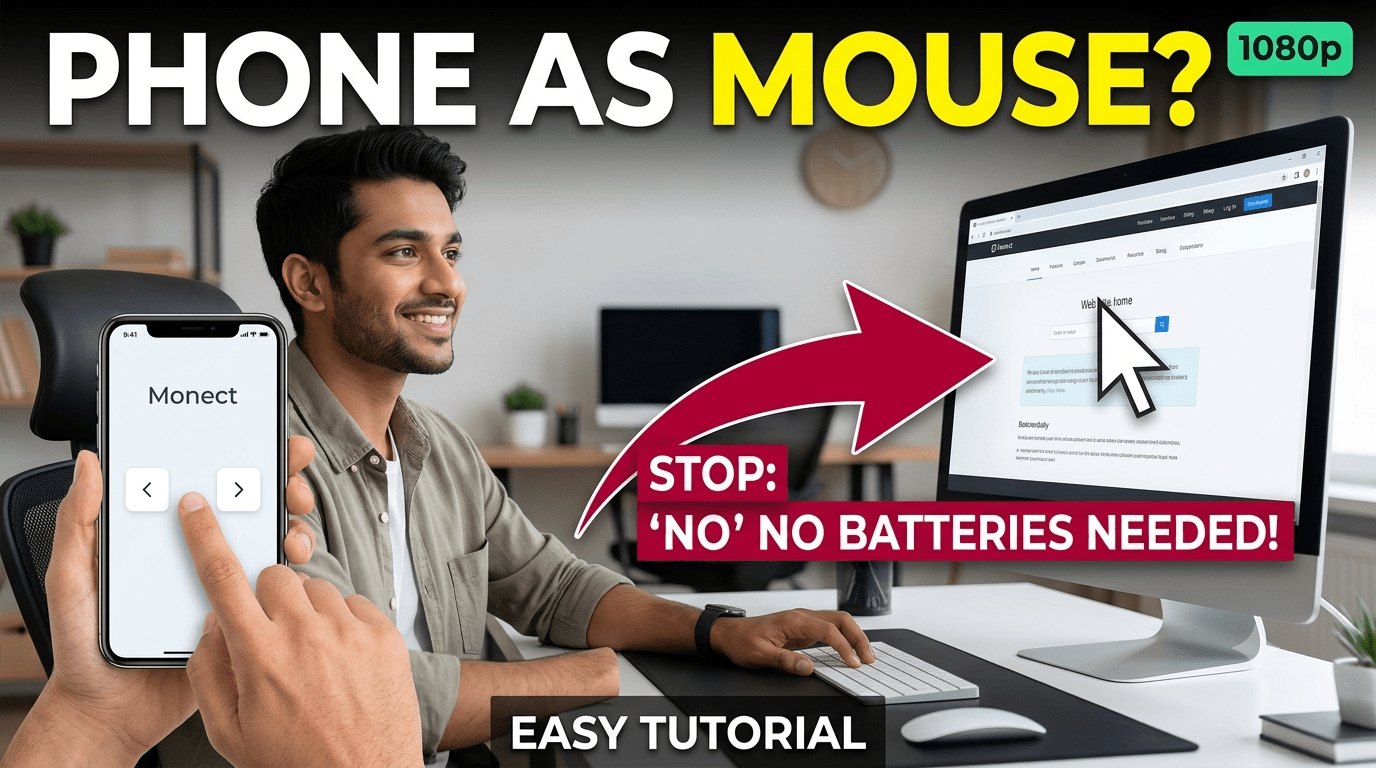
You can easily use your mobile phone as a fully functional mouse and touchpad for your PC. In this step-by-step guide, we will show you how to convert your Android or iOS smartphone into a responsive wireless trackpad with working left-click, right-click, and scroll features using the free Monect app.
Why Turn Your Mobile Phone Into a PC Touchpad?
Transforming your phone into a virtual mouse solves several common hardware and convenience problems:
- Emergency Backup: An instant replacement if your physical mouse stops working, breaks, or runs out of battery.
- Laptop-Style Navigation: Brings smooth, multi-touch trackpad functionality to any desktop monitor setup.
- Wireless Freedom: Relax on your couch and navigate your computer screen from up to 30 feet away without needing a flat surface for a traditional optical mouse.
The Ultimate Free Tool: Monect PC Remote
To achieve an immediate, zero-lag mouse experience, we use the Monect system. This utility establishes a wireless connection over your local Wi-Fi network, giving you a smooth canvas on your mobile screen that acts exactly like a premium laptop touchpad.
How to Set Up Your Mobile Mouse (Step-by-Step)
Step 1: Download Monect on Your Computer
First, your PC needs the companion software to receive your phone’s touch signals:
- Open your browser and search for Monect.
- Download the free desktop server application from their official site.
- Install the software on your Windows PC and open it.
Step 2: Install the Remote App on Your Phone
Next, convert your mobile screen into the actual hardware interface:
- Head over to the Google Play Store or Apple App Store.
- Search for “Monect PC Remote” and install the app (identifiable by its distinctive blue background and “M” logo).
- Open the app on your phone.
Step 3: Connect Instantly and Use the Touchpad
- Ensure both your computer and your smartphone are connected to the same local Wi-Fi router.
- Tap the Connect button inside the mobile app.
- The app will automatically detect your active computer. Simply tap your PC’s name to connect.
- A clean, gray touchpad interface will immediately appear on your mobile screen.
How to Control Your PC with the Virtual Touchpad
Once connected, navigating your desktop is completely natural:
- Moving the Cursor: Slide your finger across your phone screen to glide the cursor seamlessly across your computer monitor.
- Left-Click & Right-Click: Use the dedicated on-screen mouse buttons displayed at the bottom of the interface, or tap with your finger to select files and open menus.
- Scrolling: Slide your finger along the edge of the virtual pad to scroll up and down web pages and documents effortlessly.
Troubleshooting Quick Fixes
If your PC’s name isn’t popping up during the connection step, check these two things:
- Network Isolation: Ensure your phone isn’t utilizing cellular mobile data. It must be strictly on the same Wi-Fi connection as your computer.
- Permissions: Make sure you grant the mobile app network permissions when launching it for the first time.
Watch the Full Video Tutorial
To see an explicit, 60-second visual walkthrough of this setup in action with full on-screen demonstrations, check out the short video tutorial here: