
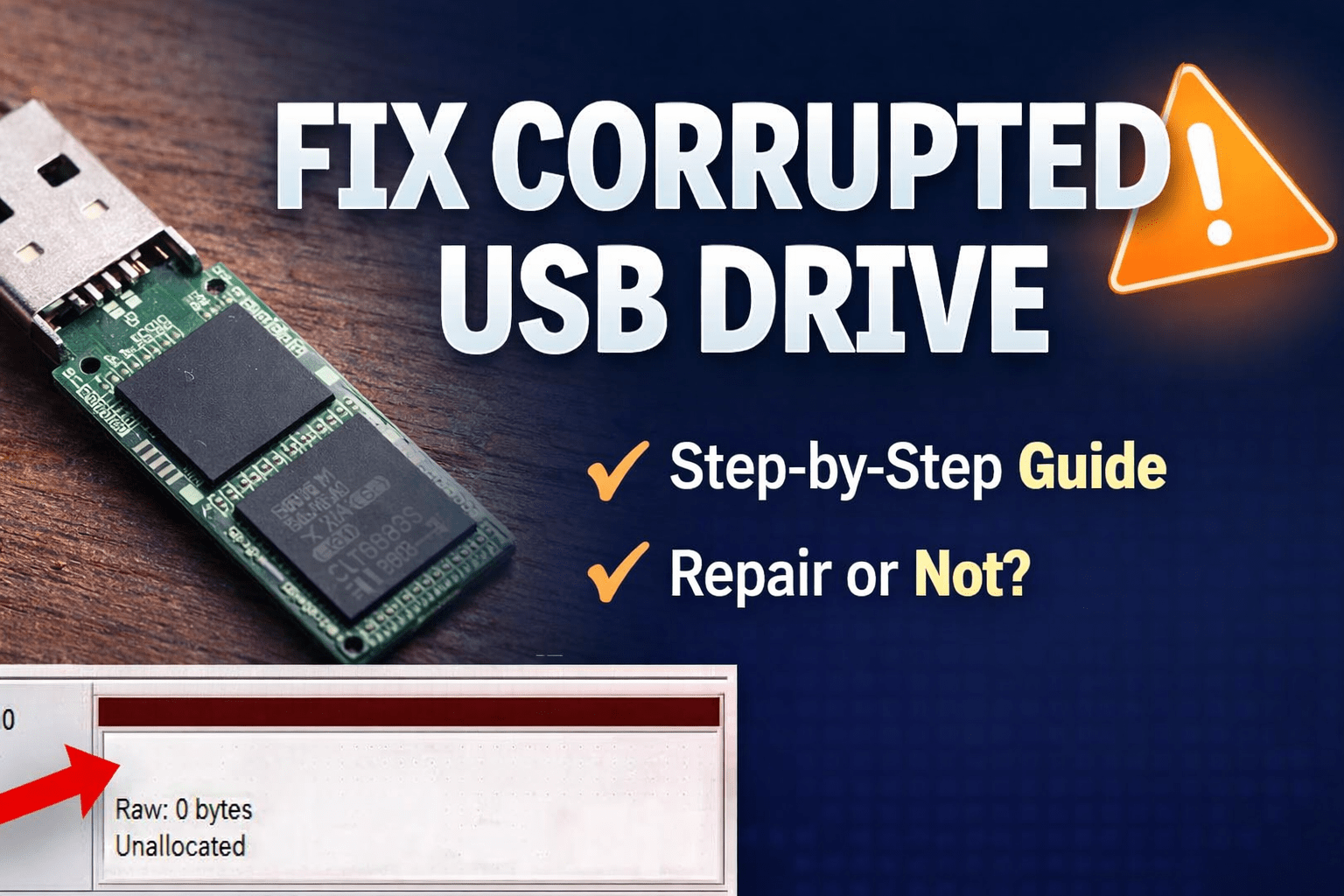
USB flash drives sometimes suddenly stop working and Windows shows messages like “You need to format the disk before you can use it” or the drive appears as RAW in Disk Management. Many users think the USB is permanently dead, but in some cases it can actually be repaired.
Based on a real troubleshooting process, this guide will show practical methods to diagnose and attempt repair before deciding whether the USB drive is truly unrecoverable.
1. First Check: Does the USB Show in Disk Management?
Before attempting repairs, check if the drive is detected.
Steps
- Press Win + X
- Open Disk Management
- Look for your USB drive.
Possible results:
| Status | Meaning |
|---|---|
| RAW | File system corrupted |
| Unallocated | Partition table damaged |
| 0 Bytes | Controller cannot read memory |
| Not detected | Hardware failure |
If the drive appears as RAW, there is a chance it can be repaired.
2. Try Windows Diskpart Repair
One of the most effective built-in tools is Diskpart.
Steps
- Open Command Prompt as Administrator
- Type the following commands:
diskpart
list disk
select disk X
clean
create partition primary
format fs=ntfs quick
assign
exit
⚠️ Replace X with your USB disk number.
If this works, the drive will become usable again.
If Diskpart fails, move to the next method.
3. Try a Partition Repair Tool
Sometimes Windows tools fail but third-party software can repair the partition.
Useful tools include:
- AOMEI Partition Assistant
- MiniTool Partition Wizard
Using these tools you can:
- Delete the corrupted partition
- Create a new partition
- Format the drive again
If formatting still fails, the problem may be deeper than the partition table.
4. Identify the USB Controller
USB drives contain a controller chip that manages the memory. If its firmware becomes corrupted, the drive may appear RAW.
To identify the controller, use:
- ChipGenius
- Flash Drive Information Extractor
These tools reveal:
- Controller model
- VID / PID
- Memory chip information
Once the controller is known, you can search the firmware database.
5. Find the Correct Flash Repair Tool
USB controllers can sometimes be repaired using Mass Production (MP) tools.
These tools reinstall controller firmware and rebuild the flash memory structure.
A useful firmware database is:
- FlashBoot.ru
Search using the VID and PID values from the detection tools.
For example:
VID: 346D
PID: 5678
The database may suggest a compatible flashing tool.
6. Run the MP Tool
After downloading the correct tool:
- Extract the program
- Run it as Administrator
- Insert the USB drive
- Click Scan or Detect
- Start the flashing process
The tool will attempt to:
- Detect NAND memory
- Repair bad blocks
- Rebuild the file system
If the process finishes with PASS, the drive may work again.
7. Inspect the USB Hardware
If software tools fail, open the USB casing and inspect the circuit board.
You may see two possible designs.
Standard USB Design
Two visible chips:
- Controller chip
- NAND flash memory chip
These drives are often repairable with the correct MP tool.
COB (Chip-on-Board) Design
Some cheap USB drives look like this:
- One black epoxy blob covering everything
- No visible chips
In this design, the controller and memory are bonded directly to the board.
These drives are extremely difficult to repair.
8. Signs Your USB Drive Is Not Repairable
Your USB drive is probably beyond repair if:
- DiskPart cannot clean the drive
- Partition tools fail
- Controller detection tools show Unknown
- MP tools cannot detect the device
- Windows reports 0 bytes capacity
- The USB uses COB epoxy design
When the controller cannot access the memory chip anymore, software repair is no longer possible.
9. Final Recommendation
If the USB drive contains important data, professional recovery labs may still recover it by reading the NAND chip directly. However, this is expensive and usually costs far more than the price of a new USB drive.
For normal use, replacing the drive is the most practical option.
Conclusion
Many USB drives that appear corrupted can be repaired by:
- rebuilding the partition table
- reinstalling controller firmware
- or repairing bad blocks.
However, extremely cheap flash drives with hidden controllers or damaged NAND memory often cannot be revived.
By following the troubleshooting steps in this guide, you can determine whether your USB drive is repairable or permanently damaged.
SEO Summary
Learn how to repair a USB drive showing RAW or asking for format in Windows. This step-by-step guide explains how to use Diskpart, partition tools, controller detection software, and firmware flashing tools to diagnose and attempt to fix corrupted USB flash drives, and how to determine when a drive is permanently damaged.